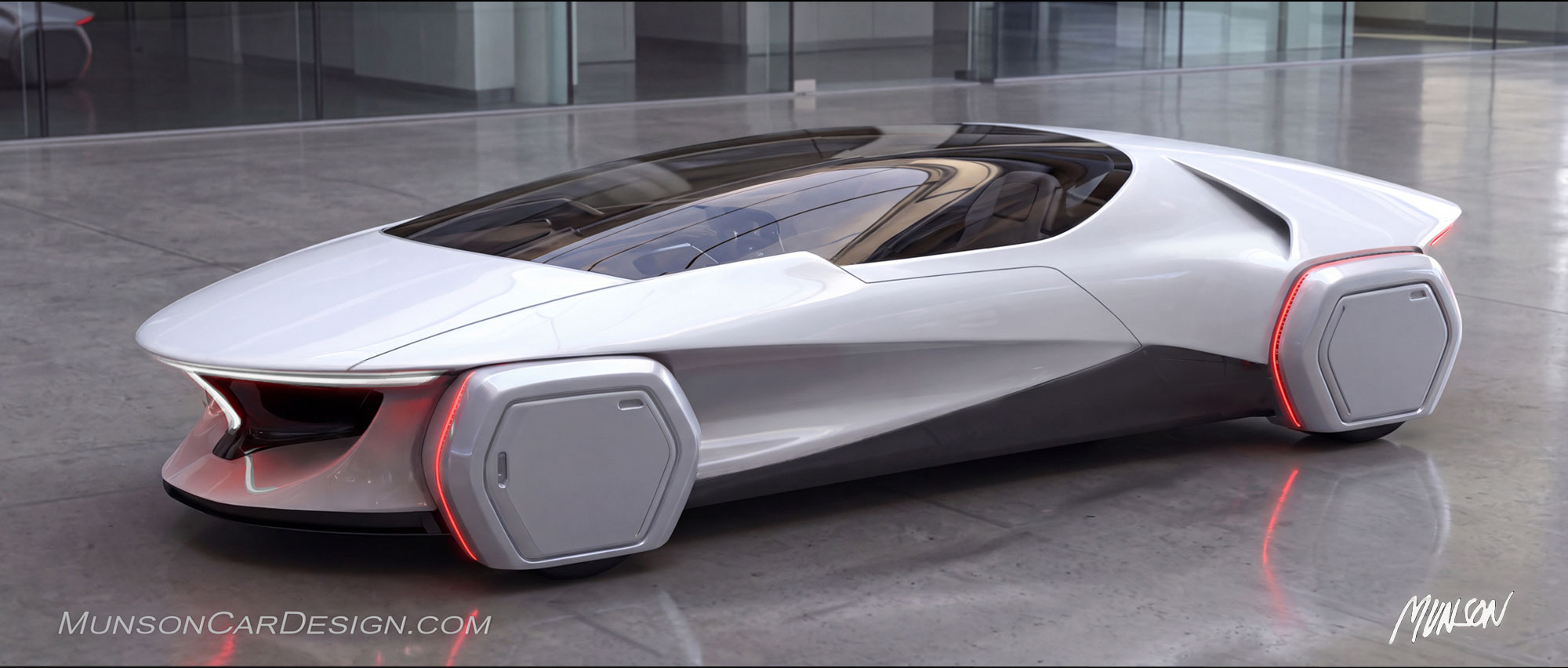
My favorite comment about my last post comes from a friend, Jim Kamp:
‘Space car, pretty darn cool. Couldn’t help but think, Man, that guy’s got a heck of a bladder to orbit the earth in a car’.
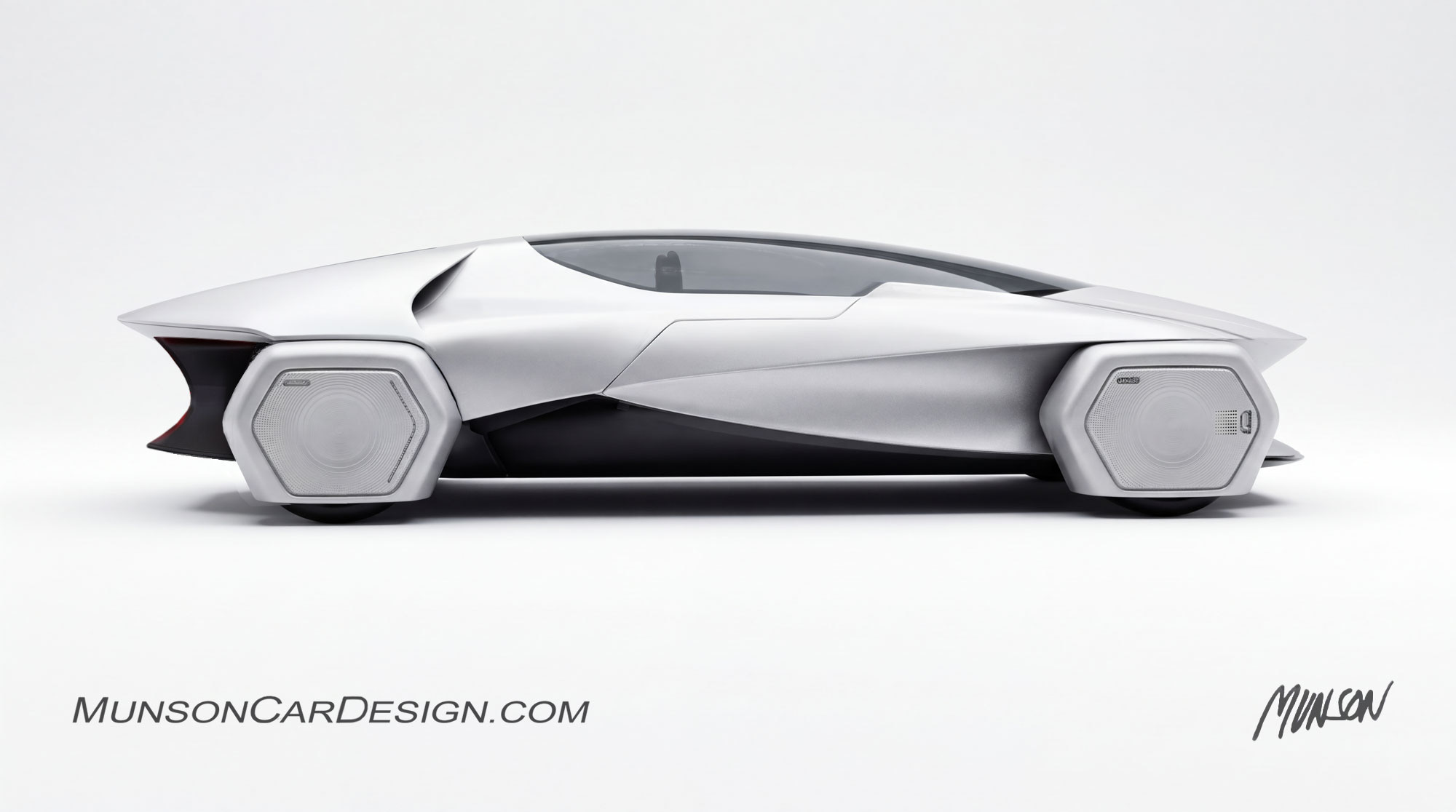
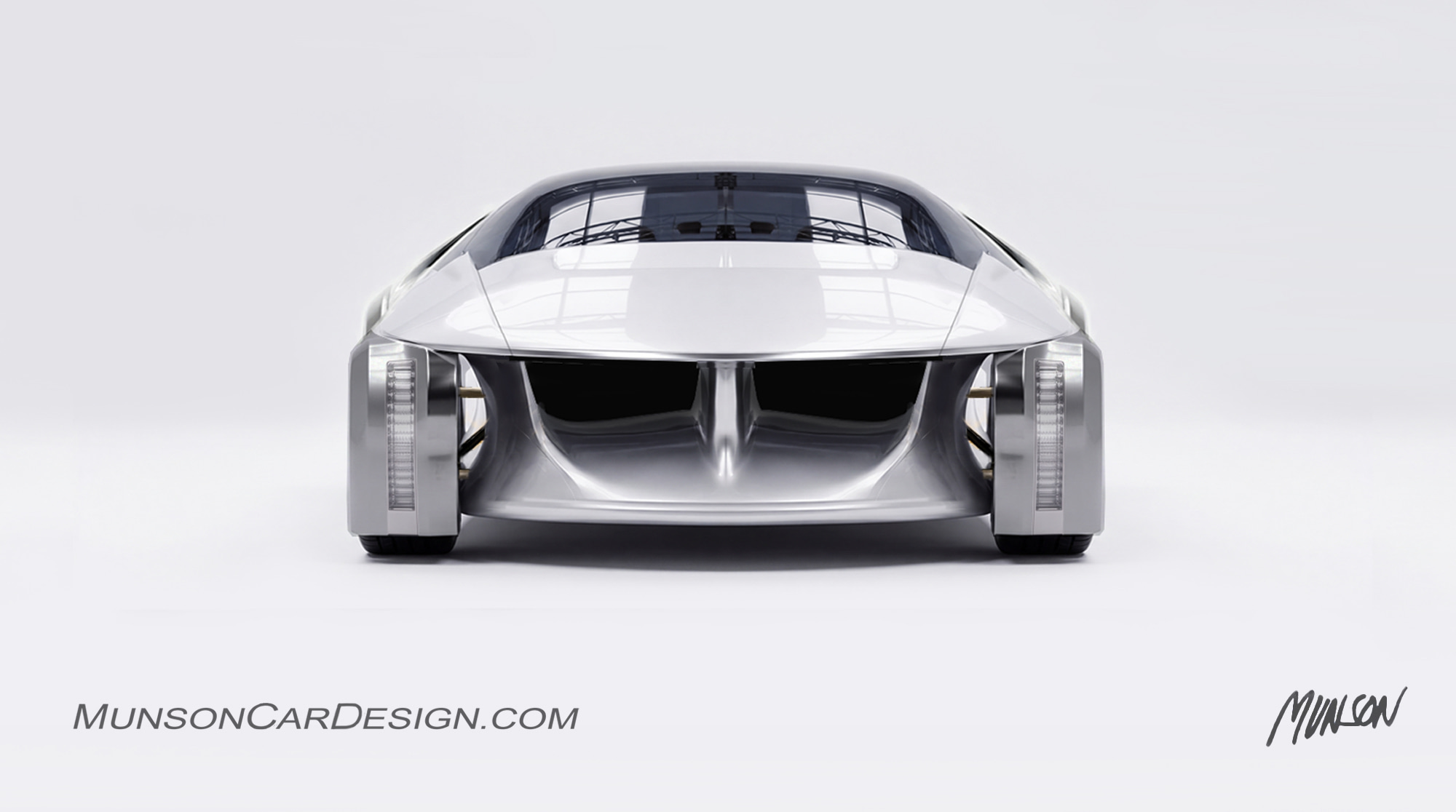
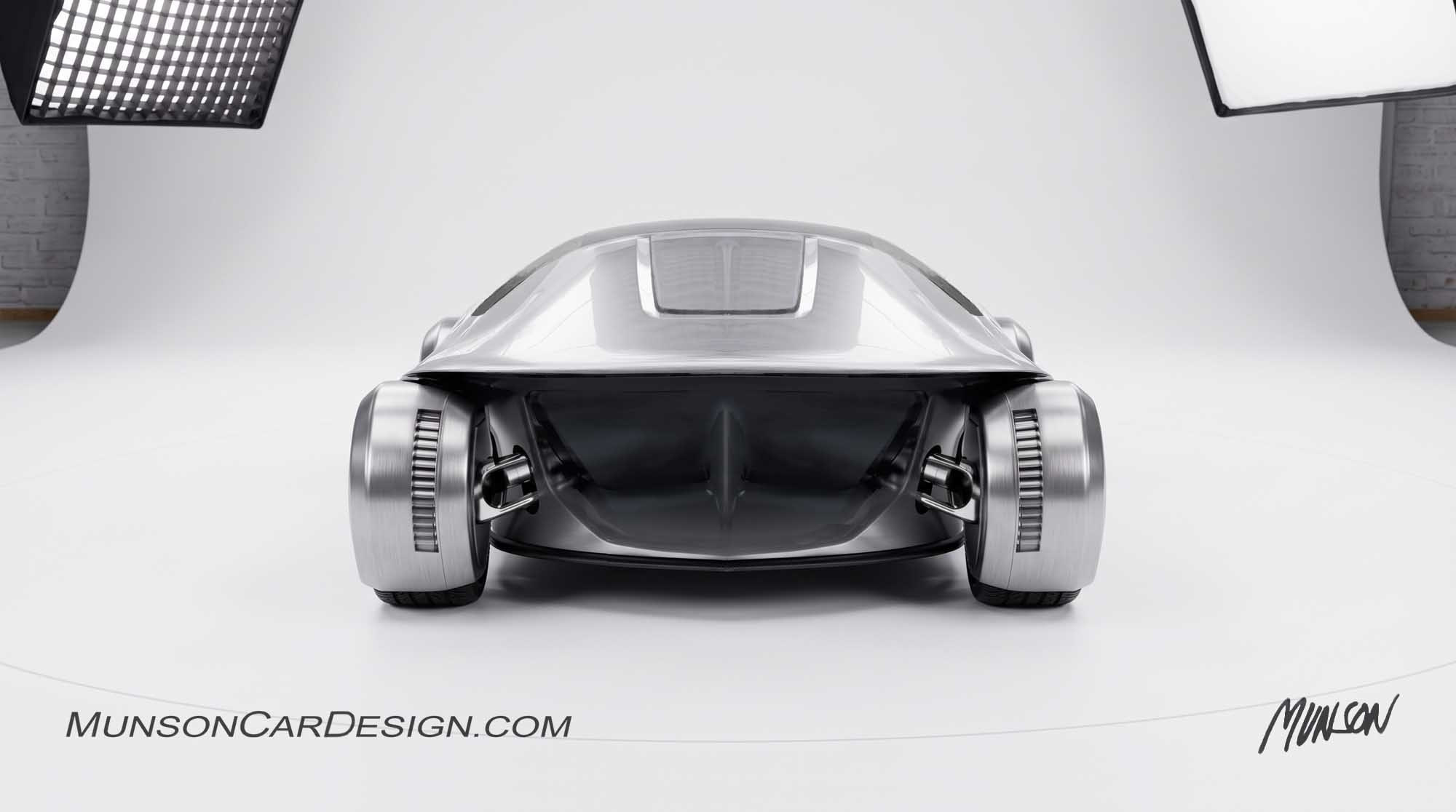
I’ve decided to create a 3D model of this design to send to a 3D printer, so I started by drawing orthographic views of the car. Vizcom allows you to include up to five views of your design as separate layers, helping generate more accurate 3D results.
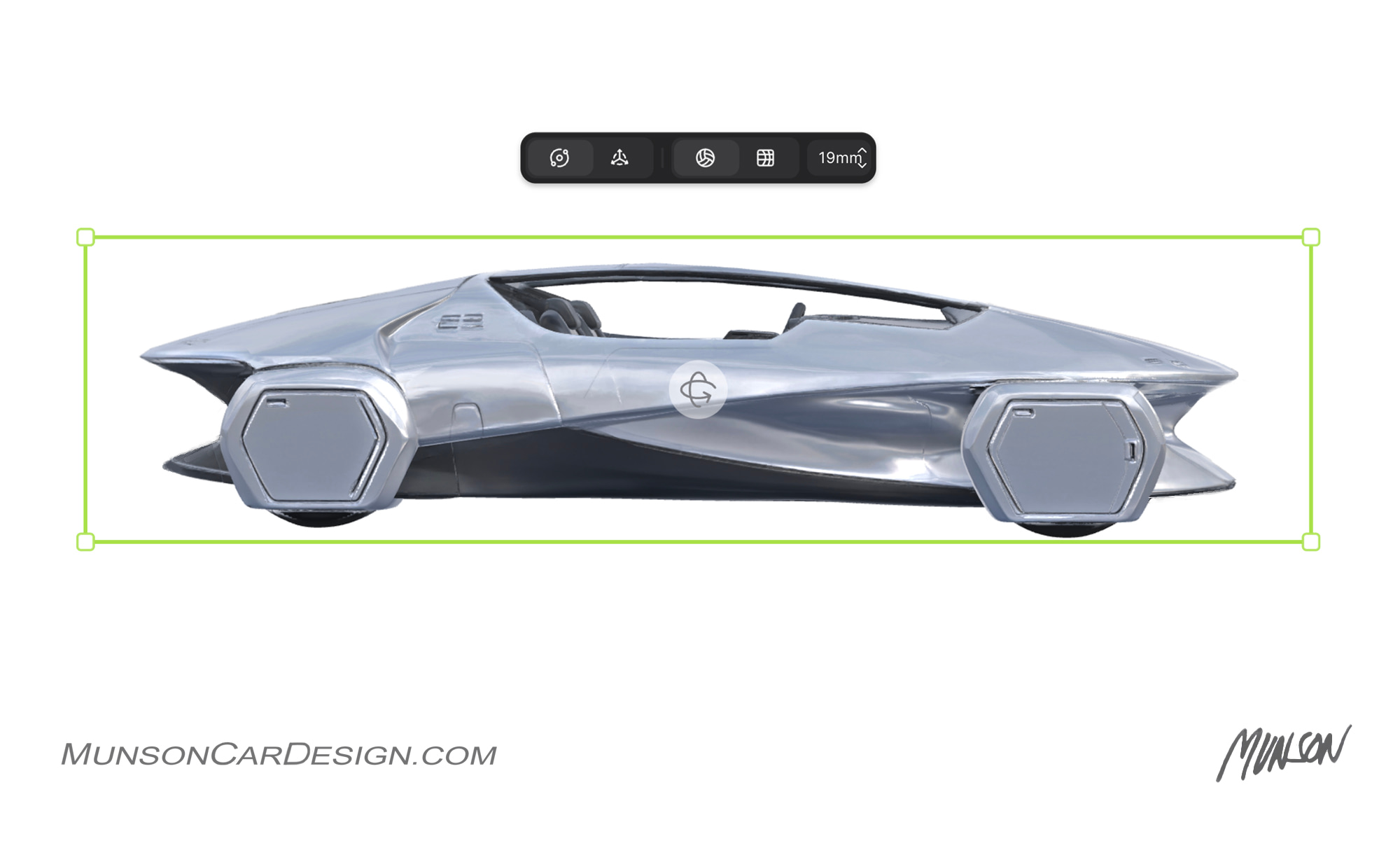
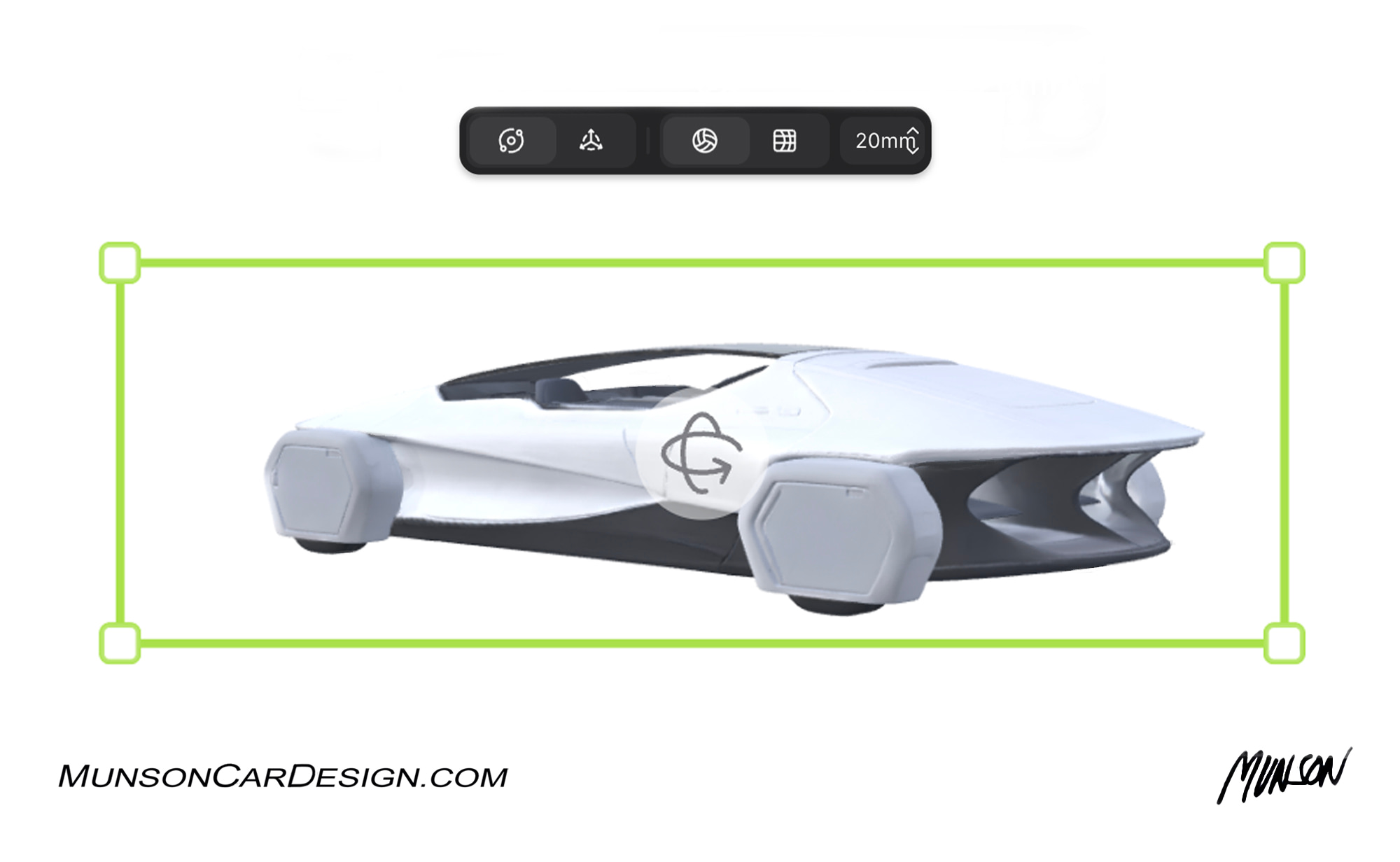
In the Vizcom workbench, select multiple images, right-click, and choose “Add selection as layers in Studio.” Double-click the newly created file and select “Make 3D.” The default mode is “Detailed sharp V3,” but I got better results with “Detailed smooth V3.” I chose “Balanced” for Mesh Detail and “Standard definition” for Texture. Under Advanced Options, selecting “Quad topology” produces meshes that are significantly easier to clean up and manipulate in external programs.
My preliminary 3D results are still a little rough—not quite ready for the printer. I’ve included a couple of examples generated by Vizcom. Given the complexity of my design, I’ll need to split the mesh into multiple pieces using a tool such as Blender before it’s ready to print.
Starting with clean sketches seems to produce the best results. I’d like to learn more about 3D generation; the YouTube videos make it look so easy! Our Rochester Hills library has a department called Makerspace with a resin 3D printer, so I’ll be paying them a visit.
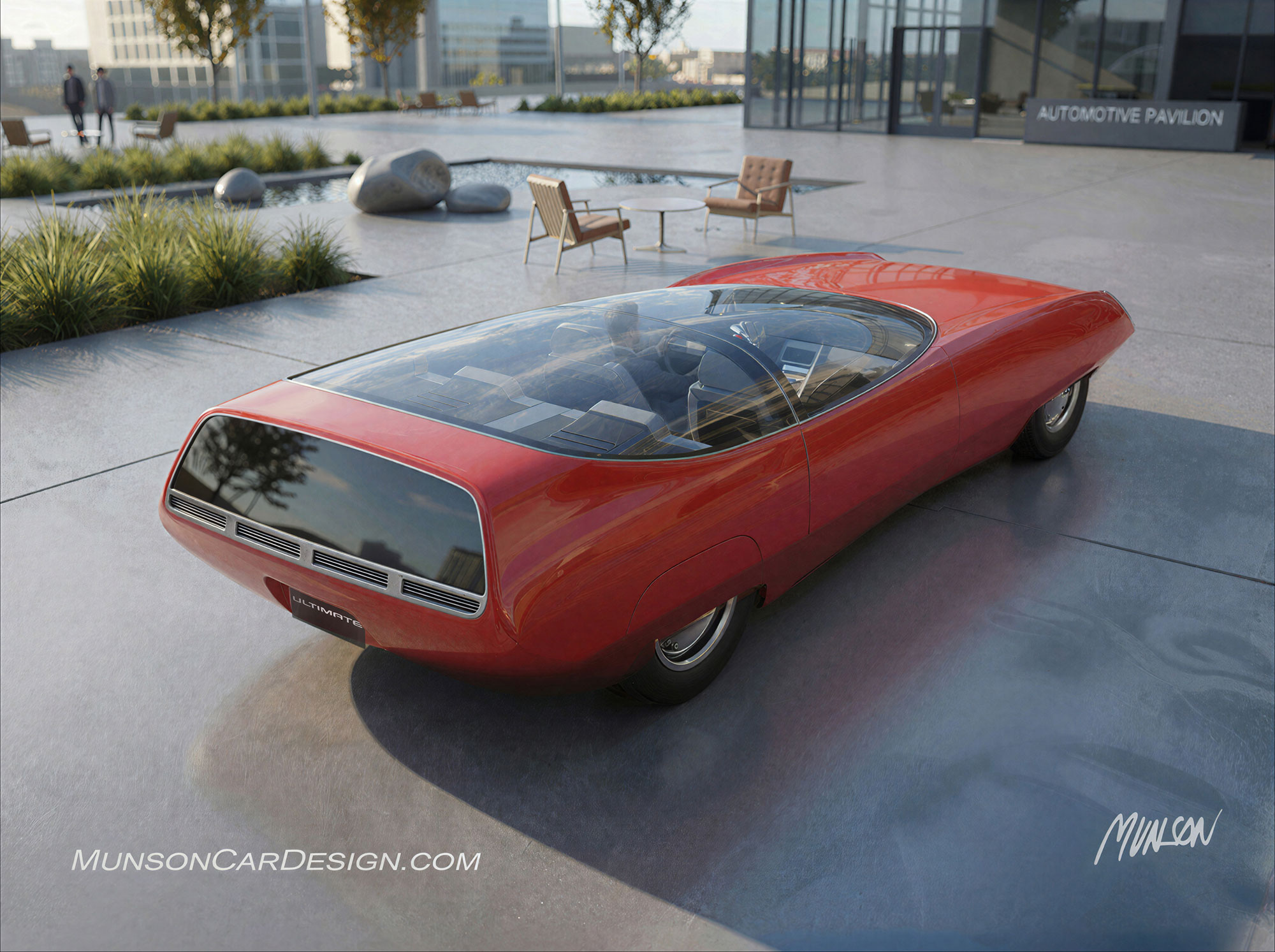
Vizcom’s animation capabilities keep getting better and faster! I like how the videos zoom in to reveal more detail and even include sound effects. I had some trouble getting Vizcom to open the door in two separate pieces the way I envisioned, but the result I’m sharing in my post is still very compelling.